
Search the Community
Showing results for tags 'lettering'.
Found 2 results
-
Version 1.0.0
61 downloads
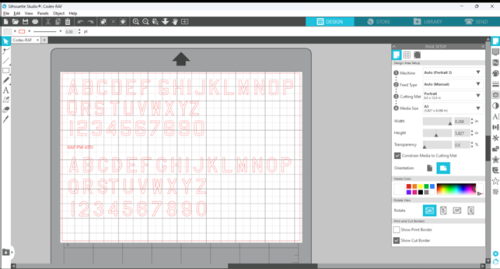
I saw a thread on LSP recently, in which the OP described the difficulties with installing certain fonts, which are recognised by MS WOrd and other software, but not picked up by the Silhouette Studio software. The process the poster described was basically the one I used: Type up the lettering you want in MS Word, scan it in, and manipulate it until you have your codes in your studio 3 file. What a bother! But there is no way round it. However, the thread reminded me that I had created this file, but not uploaded it here. SO better late than never, here it is. It contains all the letters and numerals in two of the most common font styles used by RAF aircraft. You can use them for squadron codes, serial numbers, or whatever you choose. Just copy and past the characters you require into your own Studio 3 file, size them and arrange them to suit your subject, and off you go. Applicable to all scales - although the smallest I've managed to cut are the 4" characters that the RN use for serials in 1/32 scale. Hope this is useful. -
View File Codes-RAF I saw a thread on LSP recently, in which the OP described the difficulties with installing certain fonts, which are recognised by MS Word and other software, but not picked up by the Silhouette Studio software. The process the poster described was basically the one I used: Type up the lettering you want in MS Word, scan it in, and manipulate it until you have your codes in your studio 3 file. What a bother! But there is no way round it. However, the thread reminded me that I had created this file, but not uploaded it here. So better late than never, here it is. It contains all the letters and numerals in two of the most common font styles used by RAF aircraft. You can use them for squadron codes, serial numbers, or whatever you choose. Just copy and paste the characters you require into your own Studio 3 file, size them and arrange them to suit your subject, and off you go. Applicable to all scales - although the smallest I've managed to cut are the 4" characters that the RN use for serials in 1/32 scale. Hope this is useful. Submitter MikeC Submitted 11/24/2023 Category Aircraft - Military